
All Devices Detector finder
DOSA AppsTools
4.52.52K Reviews
- Version
- 4.1.6.1
- Installs
- 5.00M
- Age Rating
- Everyone
Screenshots
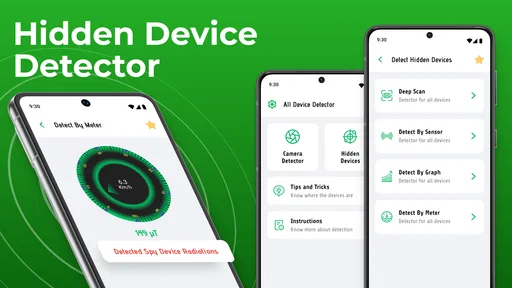
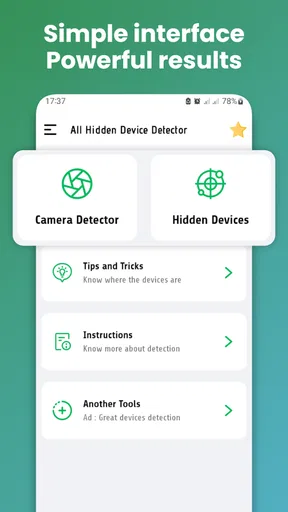
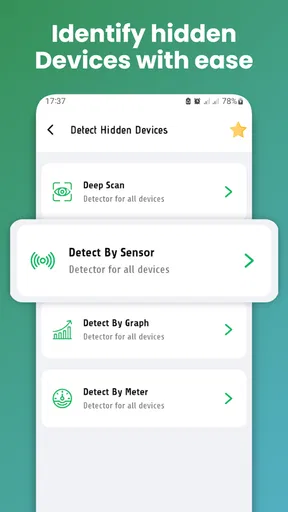
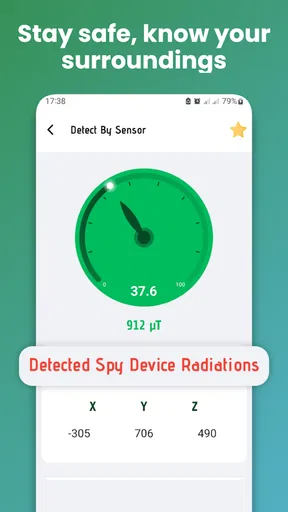
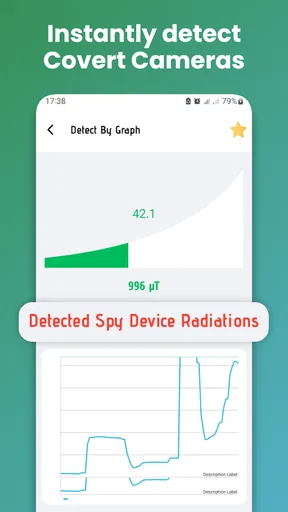
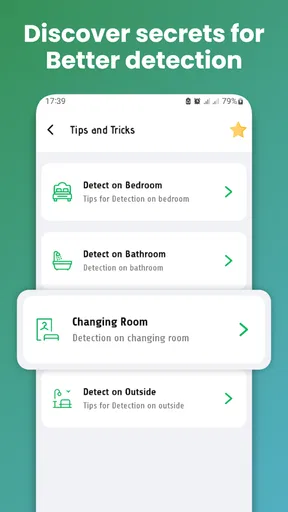
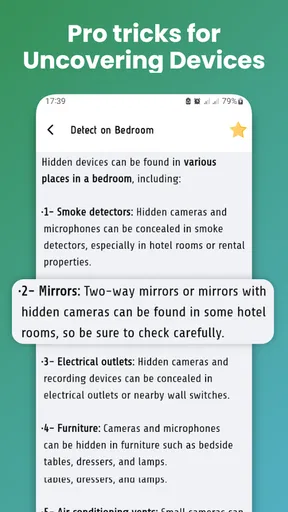
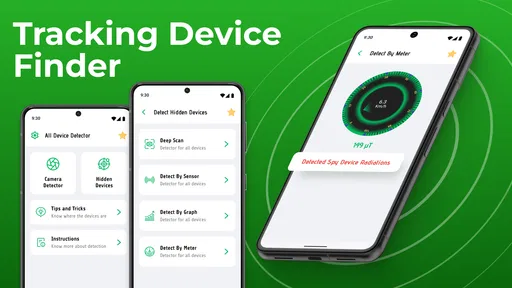
Our Review of All Devices Detector finder
 Analysis by Appyee
I think All Devices Detector finder is most useful as a quick way to take stock of a Wi-Fi network, not as a guarantee that every privacy risk will be caught. I’d reach for it when I want a clearer picture of what is connected at home or in a small shared space. Its practical value lies in making an unfamiliar device list easier to inspect, while its limits matter just as much: a scan is a snapshot, and it cannot by itself prove that a network or room is secure.
A practical starting point for checking a network
As a tools app from DOSA Apps, it is aimed at people who want a straightforward network check rather than a complicated technical dashboard. The app is free to install, rated for Everyone, and has a 4.5 average from around 37,000 ratings. That broad response suggests it has found an audience, but I would judge it by a more modest standard: can it help me notice and investigate an unfamiliar connection without pretending to replace sound security habits?
The basic workflow is appealing because it gives a non-specialist somewhere concrete to begin. Instead of guessing which household gadget is using the Wi-Fi, I can look at the connected-device list and work through it. The developer describes the app as useful for privacy checks, including detecting hidden cameras and tracking devices, but I would treat that as a prompt to investigate rather than a promise of instant certainty. Tools that inspect a network and tools that physically locate a camera or tracker do not necessarily answer the same question.
What is All Devices Detector Finder?
Imagine having a tool that can sniff out any device connected to your network. Sounds neat, right? The All Devices Detector Finder does just that. Designed to help you track, manage, and identify all the devices connected to your Wi-Fi, this app is a godsend for anyone who’s ever struggled with network management.
Setting up and making the first scan useful
First things first, installing the app is as easy as pie. Available on both Android and iOS, you simply head to your app store, download it, and you’re good to go. Once installed, the app’s user-friendly interface guides you through the setup process. In just a few taps, you’ll be scanning your network like a pro.
For a useful first pass, I would scan while connected to the Wi-Fi network I actually want to check, then compare the results with devices I can identify nearby: phones, computers, televisions, speakers, and smart-home equipment. A router’s own device list can be a helpful cross-check when an entry is unclear. This small bit of preparation makes an unfamiliar label less alarming and reduces the chance of mistaking a familiar gadget for an intruder.
One detail worth keeping in mind is that a device list is not the same thing as a complete inventory of everything in a building. It reflects what the scan can see on the network at that moment. A phone using mobile data, a device switched off, or equipment on a separate guest network may not appear in the same view. If a result seems incomplete, checking that the phone is on the intended Wi-Fi and scanning again is more sensible than drawing a security conclusion from one pass.
What the device list can tell you
One of the coolest features is its ability to list all devices connected to your network, complete with IP and MAC addresses. You can even label devices for easy identification later on. No more guessing games about which device is which!
Labels are more valuable over time than they may seem on the first day. I’d identify devices one by one while I can physically check them, using plain names such as “work laptop” or “living room TV.” That creates a personal reference point for later scans, when a technical address alone may not mean much. I would avoid naming an entry as suspicious just because I do not recognize it immediately; shared routers and smart devices can use names that are not obvious to the person who set them up.
IP and MAC details can help when asking a more technical person for advice or comparing an entry with the router’s administration page. They are clues, not a neat identity card for a person or product. Addresses can change or be presented differently by network equipment, so I would use them to compare observations rather than treat one value as permanent proof that a device is safe or unsafe.
Alerts, timing, and what “real time” means in practice
Another standout feature is the real-time monitoring. If a new device pops up on your network, you’ll know. This is perfect if you’re concerned about unauthorized access. The app’s alert system will send you a notification if anything fishy happens.
I’d use alerts as a reason to take a closer look, not as a verdict. A guest joining the Wi-Fi, a new smart device being set up, or a household member returning with a phone can all account for a new appearance. Before changing passwords or confronting anyone, I would check who has recently connected and compare the entry against the router’s own list. If the device remains unexplained, changing the Wi-Fi password through the router and reconnecting trusted devices is a stronger response than repeatedly watching notifications.
There is also a useful trade-off in how often a person checks. Frequent alerts may feel reassuring at first, but ordinary household changes can make them noisy. For a home network, I would start with a baseline scan, label recognizable items, and then pay attention to genuinely new entries. In a shared rental or workplace, where other people may add devices, a scan is more informative when I know the network’s usual rules and who is allowed to use it.
Performance and usability
In terms of performance, the All Devices Detector Finder is snappy and reliable. The app quickly scans your network without any noticeable lag. It’s designed to be lightweight, ensuring it doesn’t hog your phone’s resources.
The usability factor is high. Even if you’re not tech-savvy, you’ll find the interface intuitive. The developers have clearly put a lot of thought into making sure the app is accessible for all users.
For the most dependable comparison, I would scan from the same Wi-Fi network rather than rely on a result taken elsewhere. A guest network and a main network can show different sets of devices, and a mobile connection is not a substitute for checking the router’s local network. If I were troubleshooting a device that had disappeared, I’d confirm it is powered on and connected first, then rescan. That sequence separates a simple connection issue from a worrying unknown entry.
The app is on version 4.1.1 and supports Android 5.0 and later. Its reach is reflected in more than five million installs, but popularity does not change the basic limits of network scanning. I would still keep the router’s software and password settings in good order, because an inventory tool can help me notice what is present without taking over the router’s security controls.
How it fits alongside other checks
Compared with opening a router’s administration page, a phone app can feel more approachable for a quick look, especially if I do not want to navigate a router’s technical menus. The router remains a useful source to compare against, though, because it is the equipment managing the connection. I see the app as a convenient front door to a check, not an automatic replacement for the router’s own controls.
It also has a different job from a dedicated camera lens finder or a physical inspection. A network scan can help reveal devices communicating over the Wi-Fi being checked; it cannot establish that every camera or tracking device in a room is connected to that network or even powered on. When I am concerned about a private space, I would combine a network check with a careful visual inspection and, where appropriate, help from a qualified professional. That distinction is especially important for travelers: a clean scan should not be treated as proof that a hotel room contains no hidden device.
At home, a realistic use is checking a router after a visitor has connected or after adding a new smart speaker. I can scan, identify the known devices, label the ones I recognize, and then revisit any entry that still has no clear explanation. In a small office, the same routine can help an owner notice that a newly connected device needs to be identified, though it is not a substitute for a managed network or an IT professional when sensitive business systems are involved.
Where the privacy promise needs careful reading
The name and privacy-focused purpose may lead people to expect a universal detector, but I would keep expectations specific. Finding devices on a Wi-Fi network is a narrower task than discovering every tracking device or concealed camera nearby. A tracker may not be using the network I can scan, and a camera may be offline or connected through equipment I cannot access. If the concern is a particular physical object, network results alone are not enough to settle it.
I would also avoid treating an unknown entry as evidence of wrongdoing. Device names can be vague, and a network can include equipment belonging to family, visitors, or previous setup attempts. The sensible workflow is to check the timing, ask who has recently connected, compare against the router, and only then decide whether to secure the network. That keeps the app useful without letting an ambiguous label create unnecessary alarm.
The app is free, with in-app purchases ranging from $0.99 to $99.99 per item. I would begin with the free experience and decide whether the core scan and identification workflow meets my needs before considering any purchase. The range is wide enough that I’d check the purchase details carefully rather than assume every useful function is included at no cost.
Who I’d recommend it to
If you’re anything like me, keeping tabs on your network can sometimes feel overwhelming. This app takes the stress out of the equation. Whether you want to ensure your network’s security or simply want to manage your devices better, this app has got you covered.
I think it suits people who want a quick, approachable way to review a home Wi-Fi network, especially if they have several connected gadgets and have never made a device inventory. It can also be handy before and after setting up a new router, because labeling familiar entries gives you a baseline to compare later. Someone who enjoys tinkering with network settings may prefer a router dashboard or a more advanced network utility for deeper diagnostics, while anyone needing guaranteed physical surveillance detection should choose a method designed for that specific task.
For a first-time user, my advice is to avoid scanning in a panic. Do it when the network is stable, list the devices you can identify, and note which entries remain uncertain. If a new connection appears later, that baseline gives you a calmer comparison. If you share the Wi-Fi, tell other household members you are making an inventory so they can identify their own devices; this simple step often resolves more confusion than repeatedly rescanning.
It is not the right choice for someone expecting a single scan to certify that a home, hotel, or office is free of every hidden camera or tracker. Nor would I rely on it as the only security measure for a business network with sensitive information. In those situations, the better option is a combination of router-level security, careful physical checks, and specialist support where the stakes justify it.
Ending thoughts
So, is the All Devices Detector Finder worth a download? Absolutely. It’s a straightforward, effective tool for anyone looking to bolster their network management skills. With its easy setup, user-friendly interface, and robust features, it’s a must-have for modern device management.
If you haven’t already, give it a try. You might just find it’s the missing piece in your digital toolkit.
My verdict is positive with one important qualification: I recommend it as a practical network-checking companion, not as a complete privacy or security solution. Its greatest strength is helping an ordinary user turn a confusing list of connections into something they can review and label. Its chief limitation is that a network scan only answers questions about devices visible to that network, so interpreting results still takes care and sometimes another tool.
If that is the job you need done, the app is an easy place to start. Take a baseline scan, identify what you recognize, and use unexplained changes as a cue to investigate calmly. That measured approach gets more value from the app than expecting it to detect every possible threat on its own.
Verdict
Strengths of All Devices Detector finder
- Easy-to-use interface for quick setup.
- Detects a wide range of devices efficiently.
- Low battery consumption during scans.
- Provides detailed device information.
- Supports both Wi-Fi and Bluetooth detection.
Limitations of All Devices Detector finder
- Requires constant updates for new devices.
- Ads can be intrusive during use.
- Limited offline functionality.
- Occasional false positives in detection.
- Premium features locked behind a paywall.
Other Releases by DOSA Apps
View All
Cube Cipher - Cube Solver
Educational4.5

Recover Deleted Photos App
Photography4.4

Cleanup Your Phone
Personalization4.5

Microphone Amplifier
Medical4.2
Similar Picks in This Category
View All
Google LLC4.0

Gboard - the Google Keyboard
Google LLC4.5

Google Play services
Google LLC4.3

Google Play Store
Google LLC4.9

Files by Google
Google LLC4.5

SHAREit: Transfer, Share Files
Smart Media4U Technology Pte.Ltd.4.3
Frequently Asked Questions
What is All Devices Detector Finder and how does it work?
All Devices Detector Finder is a utility app designed to locate and identify all devices connected to your network. It works by scanning the network and providing detailed information about each connected device, such as IP address, MAC address, and device type. This is particularly useful for network management and security purposes.
Is All Devices Detector Finder safe to use on my network?
Yes, All Devices Detector Finder is safe to use. It does not interfere with your network settings or compromise your security. The app only analyzes connections to provide you with information about the devices on your network. Ensure you download it from a trusted source to avoid any security risks.
Does All Devices Detector Finder require special permissions?
The app requires certain permissions to function effectively, such as access to your network settings and Wi-Fi connection. These permissions are necessary for the app to scan the network and identify connected devices. Always review permissions during installation to understand what access the app is requesting.
Can I use All Devices Detector Finder on both Android and iOS devices?
Yes, All Devices Detector Finder is available for both Android and iOS platforms. The interface and features are optimized for each operating system, ensuring a smooth user experience regardless of the device you're using. Check the compatibility requirements before downloading to ensure it works with your device's version.
Is there customer support available for All Devices Detector Finder?
Yes, the app offers customer support through various channels such as email and in-app chat. This support can assist with technical issues, provide usage guidance, and answer any questions you may have. It’s advisable to check the app’s official website or support section for more detailed contact options.
